Step-by-Step: Multi-Language Dubbing for YouTube with SRT
 Yupvox Team
Step-by-Step: Multi-Language Dubbing for YouTube with SRT
Multi-language dubbing for YouTube turns a timed subtitle file into spoken audio in another language, helping creators make videos accessible to more viewers. With YupVox, you can upload an SRT file, choose a voice and language, adjust audio settings, generate a synchronized dub, then review and export it for your video workflow. The key is to check timing, pronunciation, and meaning before publishing.
1. What SRT-Based YouTube Dubbing Does
SRT-based dubbing converts the text and timecodes in a subtitle file into spoken audio. It gives creators a structured starting point for localized voiceovers, but the generated track still needs human review for meaning, timing, and fit with the video.
 Hình: Step-by-Step: Multi-Language Dubbing for YouTube with SRT - 1. What SRT-Based YouTube Dubbing Does
From subtitle text to spoken audio
An SRT file contains numbered subtitle entries, text, and start and end timecodes. In a dubbing workflow, the subtitle text provides the spoken content, while its timecodes help position each line in relation to the video. This is useful when a creator already has subtitles and wants to make a voice track in another language.
The process is more than reading captions aloud. Subtitle lines are often shortened to fit on screen, while spoken language may need different phrasing to sound natural. A direct, word-for-word conversion can also create lines that are too long for their allotted time. Treat the SRT as a timing and content reference, then review the translated script and generated speech against the video.
With YupVox, the relevant feature is Subtitle to Audio: upload an SRT file, align it with the video timeline, configure the voice and audio settings, generate the dub, and review the result before export. The workflow is designed for creators who want to build a localized voice track from existing subtitles rather than record every language from scratch.
How YupVox fits into a creator’s workflow
YupVox is a cloud-based AI Voice Studio for text-to-speech, speech-to-text, voice cloning, subtitle-to-audio dubbing, and other audio tasks. Its voice library includes more than 3,000 voices, and the platform supports over 100 languages with native-accented speech synthesis. The available tools also include vocal removal, audio enhancement, and format conversion.
For YouTube localization, creators can use the subtitle-dubbing workflow to prepare audio for tutorials, explainers, educational videos, and other content with clear narration, while comparing available free AI voice dubbing tools for YouTube. After generation, the track can be downloaded and integrated into video-editing software. Review the final video and follow the current publishing options available for your YouTube channel; the workflow described here is not a claim of direct publishing from YupVox to YouTube.
If you want a closely related walkthrough, see this SRT-to-voice dubbing guide for YouTube. It can help you compare the SRT-to-audio process with the broader localization steps in this article.
2. YupVox Features and SRT Dubbing Specifications
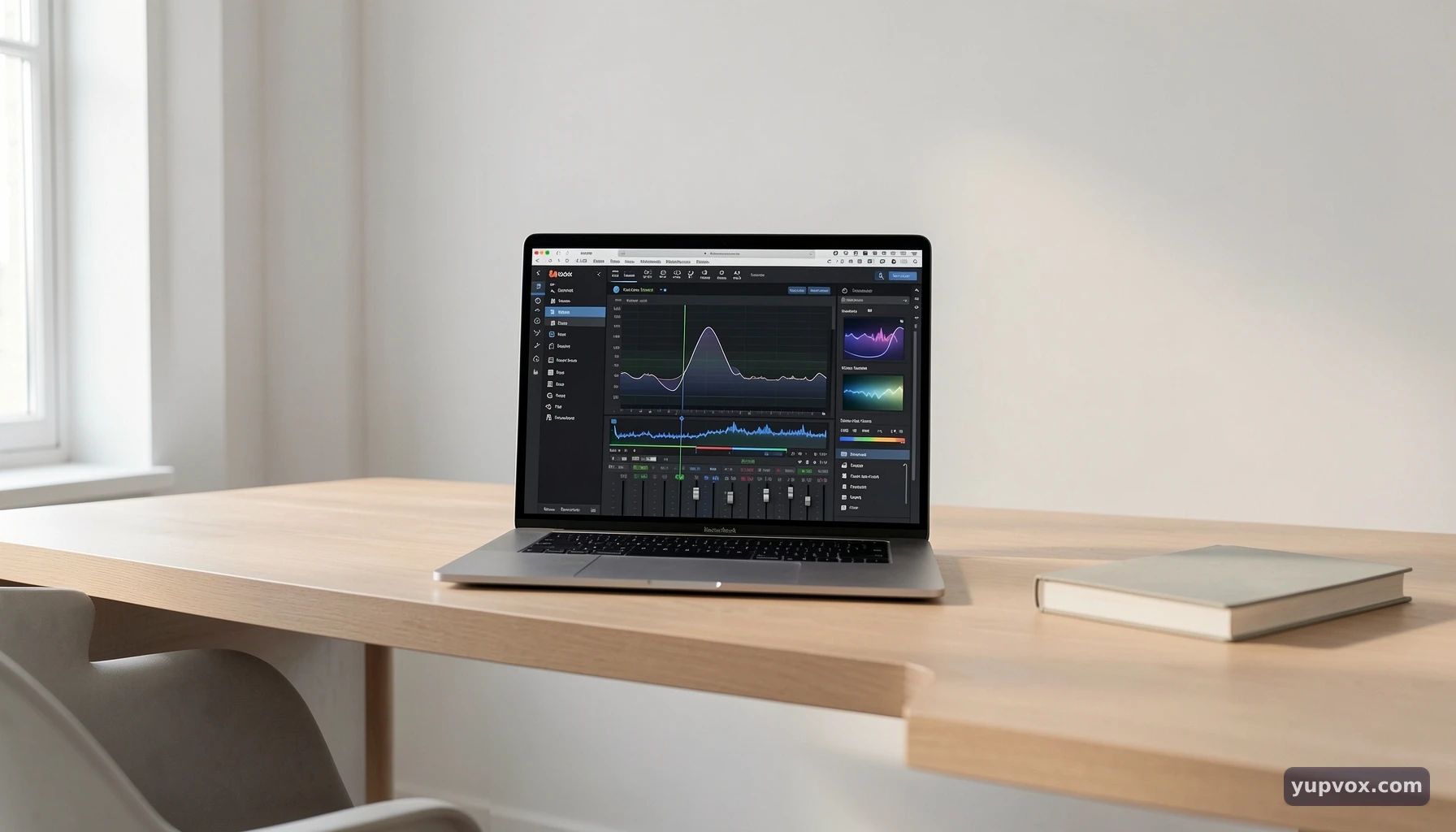
The practical value of an SRT-to-audio workflow depends on more than voice generation: creators also need language options, controls for delivery, and a reliable review-and-export process. The specifications below summarize the YupVox features relevant to YouTube localization.
 Hình: Step-by-Step: Multi-Language Dubbing for YouTube with SRT - 2. YupVox Features and SRT Dubbing Specifications
Feature comparison for a dubbing project
| Project requirement | YupVox capability | Practical use |
|---|---|---|
| Starting material | Subtitle to Audio supports SRT upload | Use existing subtitle text and timecodes as the dubbing foundation |
| Voice selection | More than 3,000 AI voices | Choose a voice profile that fits the content and intended audience |
| Language choice | More than 100 supported languages | Prepare localized versions for different language audiences |
| Delivery adjustments | Speed, pitch, and emotional tone controls | Adapt delivery to the video’s pacing and context |
| Voice identity | Custom voice cloning from a minimum 10-second audio sample | Create a consistent voice identity, subject to appropriate permissions |
| Audio cleanup | 22+ specialized audio tools, including vocal removal and enhancement | Address certain post-production needs within the platform |
| Export and editing | Download generated audio for video-editing workflows | Review, place, and mix the track with the video before publishing |
| Initial access | 50,000 free characters on signup; no credit card required for initial access | Test a workflow before deciding whether it suits the project |
| Access options | Web browser and dedicated iOS and Android apps | Work through a browser or a supported mobile application |
These are platform specifications, not a guarantee that every voice will suit every script or that every generated line will fit its subtitle timecode without adjustment. Test a short, representative section first, especially when the content includes technical vocabulary, character dialogue, or fast speech.
How to choose a voice and configure the audio
Start by matching the voice to the role of the video. A tutorial may need a clear, steady delivery; a story-driven video may call for a more expressive tone. Listen to available options where possible, and consider how the voice sounds across the actual script rather than judging it from a single short phrase.
Then check the pronunciation of names, acronyms, product terms, and borrowed words. Text-to-speech systems may read an unfamiliar term differently than the creator expects. Adjust the wording or pronunciation approach as needed, and regenerate the affected segment for review.
Use speed, pitch, and emotional tone deliberately. A small adjustment can help the narration feel closer to the original video, but aggressive changes may make the speech sound unnatural or reduce clarity. Keep an unchanged source version so you can compare revisions. If a creator wants a recurring voice identity, YupVox’s custom voice cloning can create a digital voice from a minimum 10-second sample. Use voice samples only when you have the necessary permission and rights.
3. Step-by-Step: Create a YouTube Dub from an SRT File
A reliable SRT dubbing workflow moves from preparation to generation and then to listening checks against the video. Treat each stage as a quality-control checkpoint, not just a button to press.
Step 1: Prepare the video, subtitles, and target language
Choose the video and identify the language you want to dub. Before uploading, review the SRT for spelling, complete sentences, speaker changes, and timecodes that correspond to the video. Correct subtitle errors first: the generated speech can only reflect the text it receives.
Check that the subtitles communicate the intended meaning, not merely that they are short enough to display. Captions may omit repeated words or simplify a sentence for readability. If a subtitle is too compressed to work as spoken narration, revise it into a natural line while preserving the message and timing.
If you are translating subtitles, have a fluent reviewer check idioms, names, jokes, and specialist terms. A mechanically literal translation may be grammatically correct but still sound unusual to the target audience. Keep a copy of the original SRT and use clear filenames for the source and localized versions.
Step 2: Upload the SRT and set up the voice
Register for a YupVox account, then open the Subtitle to Audio tool. Upload the prepared SRT and align it with the video timeline as part of the setup. Select the target language and a suitable voice from the available library. The best choice depends on the content, audience, and style of the original video.
Before generating the entire project, check a representative passage. Include a normal sentence and, if possible, one with challenging names or technical language. Listen for pronunciation, pace, and tone. Make adjustments to voice settings such as speed, pitch, or emotional delivery where needed.
This preview-first approach makes it easier to catch unsuitable voice choices before processing a longer script. Keep track of your selected language and voice for each version so that revisions remain consistent. If the project uses cloned voice capabilities, confirm that you have appropriate permission to use the source sample.
Step 3: Generate, inspect, and export the dub
Generate the audio, then review it alongside the video rather than listening to the voice track alone. Check whether each line begins and ends in a way that fits the scene and whether the timing remains aligned as the video progresses. Pay special attention to long subtitle lines, pauses, rapid dialogue, and transitions between speakers.
If a line does not fit or sounds unnatural, revise the text or audio settings and regenerate the relevant passage. Do not assume that a line is correct just because it is synchronized: confirm that the spoken meaning matches the intended message and that the delivery suits the visual context.
When the track passes review, export it for integration into your video-editing workflow. In the editor, check levels against music and other audio, then watch the complete video once more. Publishing steps depend on the options currently available to your channel and the format you choose; verify that the correct language, track, and video version are selected before release.
4. Pro Tips, Common Problems, and Example Workflows
Most problems in AI dubbing are easier to fix before the final export. Careful subtitle preparation, a short voice test, and a complete playback check help creators find issues before they reach viewers.
Common pitfalls and practical fixes
The generated line is too long for its time window. Subtitle timing may give a line too little space for natural speech, especially if the localized phrasing is longer than the source. Simplify the wording without changing its meaning, review the timing against the video, and adjust the edit if needed. Avoid speeding up the voice until it becomes difficult to understand.
Names or technical terms sound wrong. Identify likely trouble words before generation and listen for them during the preview. You may be able to improve the result by adjusting the written text or using a different phrasing. For educational and product videos, have a knowledgeable reviewer check the final pronunciation.
The dub is technically synchronized but feels emotionally mismatched. A neutral voice may suit an explainer but feel flat during an emotional scene. Reconsider the voice profile and tone settings, then assess the result with the visuals. Aim for a delivery that supports the content without overacting.
The voice changes between language versions. Choose and document a consistent voice profile for each localized edition. If the goal is a recognizable channel voice across projects, consider voice cloning only with the necessary authorization. Keep the project’s script and audio versions organized so later edits do not accidentally use an outdated track.
Example: Localizing a tutorial for a new audience
Imagine a creator has a tutorial with a reviewed English SRT and wants to prepare a Spanish-language voice track. The creator first checks product names and short instructions, then uploads the SRT through Subtitle to Audio. They select a voice that is easy to understand, generate a short section, and listen for pronunciation and pacing before processing the full video.
After generation, the creator checks the audio with the tutorial onscreen. A sentence that runs past a demonstration may need to be shortened or repositioned in the edit. Once the track is revised and exported, the creator watches the complete localized video to verify that spoken instructions still match the actions shown.
This example illustrates a general principle: localization is both language work and audiovisual quality control. The platform can generate speech and support the production workflow, but a creator or reviewer remains responsible for translation quality, context, and final fit.
5. The 2026 Outlook and YupVox Team Perspective
In 2026, creators can use AI voice tools to make multilingual production more accessible, but quality still depends on good source material and informed review. YupVox Team recommends measuring project readiness through practical checks—language accuracy, pronunciation, timing, voice consistency, and export quality—rather than relying on unsupported industry-wide percentages.
What creators should prioritize in 2026
A multilingual publishing plan works best when each language version is treated as a complete audience experience. That means reviewing the translated script for clarity, selecting a fitting voice, and checking that narration makes sense with the visuals. A video that is intelligible but full of awkward timing or unfamiliar terminology may not serve its new audience well.
YupVox’s more than 100 supported languages and 3,000+ voice options give creators a broad range of starting points. The platform’s SRT workflow can be useful when a project already has subtitles, while its text-to-speech tools support script-based narration. For recurring channels, voice cloning may help build a consistent voice identity when used responsibly and with appropriate permissions.
Creators can also use the wider audio toolset during production. For example, vocal removal or audio enhancement may support post-production cleanup, though results should always be inspected in the context of the full mix. The right tool depends on the source recording and the final video requirements.
YupVox Team’s quality-control framework
The YupVox Team recommends judging a dub through a repeatable review rather than a single listen:
- Language: Does the wording communicate the intended meaning naturally?
- Pronunciation: Are names, acronyms, and technical terms understandable?
- Timing: Does speech align with the video and leave room for important sounds?
- Voice: Does the delivery fit the channel and the subject?
- Consistency: Does the track match the creator’s other localized content?
- Export: Does the final audio work in the video-editing and publishing workflow?
The initial signup includes 50,000 free characters and does not require a credit card for initial access, which can make it practical to test a sample workflow before committing to a larger project. The most useful test is a representative clip, not a single easy sentence. Review it with the target audience and revise the process based on what you hear.
FAQ
Can I create a YouTube dub from an SRT file with YupVox?
Yes. YupVox includes a Subtitle to Audio feature that accepts SRT files to generate synchronized voiceovers. Upload the file, align it with the video timeline, configure the voice, generate the audio, and review the result before exporting it for your video workflow.
Does YupVox publish the dubbed video directly to YouTube?
The described workflow generates and exports audio for integration into video-editing software. Check the current options in your YouTube channel and publishing workflow for adding or managing localized audio; do not assume that YupVox directly publishes the finished video.
How many languages and voices does YupVox support?
YupVox supports more than 100 languages and offers a library of more than 3,000 AI voices. Available choices vary by project needs, so test a voice with representative text and review pronunciation and delivery before producing a full version.
Can I keep the same voice across localized videos?
YupVox offers custom voice cloning using a minimum 10-second audio sample. Use this feature only when you have the necessary rights and permission for the sample, and review the generated result to ensure it suits the content and audience.
Want to generate AI voices or dub your video?
Experience 500+ human-like voices for free with next-gen VieNeu & OmniVoice engines.
Frequently Asked Questions
Quick answers to common questions about this topic
Yupvox Team
Senior AI Audio Strategist & Voice Tech Analyst
Specialist in generative voice AI, TTS model benchmarking, and multilingual content localization strategies for creator economies.
Related Articles
Explore more guides and insights on AI audio
 General
YupVox vs PlayHT for Subtitle Dubbing: Which Is Better?
 General
YupVox vs Murf AI for e-learning projects: A Deep Dive
 General